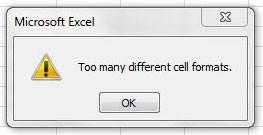
If you have ever received the “too many different cell formats” error message in Excel, stop what you’re doing, take a look around your workbook and ask yourself “are all these cell formats really useful?” After you answer the inevitable “no”, smack yourself in the back of the head for creating such a mess! Just kidding, don’t actually smack yourself, but apologize to your co-workers for making them put up with your “creativity”. Here we will cover why you get the too many different cell formats error in Excel (all versions) and how you can fix the error appearing in excel.
What does the Excel Too Many Different Cell Formats error mean?
The reason why you get the too many different cell formats error is because an Excel file can only have approximately 4,000 different combinations of cell formats. At first this might seem like a lot, but think about all the unique formatting characteristics that can be applied to a cell.
- Fonts: including the font, font size, bold, italic, underline, strikethrough, superscript, subscript, color, etc.
- Borders: including which side of the cell has a border (top, left, right, or bottom), border color, border thickness (or weight), etc.
- Fills: including fill color, and patterns.
- Number formatting: such as General, Number, Currency, Accounting, Date, Time, Percentage, Fraction, Scientific, Text, Special, or Custom. Not to mention the number of decimal places shown.
- Alignment: Top, bottom, left, right, centered, centered across selection, indented, orientation degrees, wrapped text, shrink to fit, merged cells, text direction, etc.
Any unique combination of the above cell formats counts towards the 4,000 limit that will end up showing the too many different cell formats error. However, if several cells share exactly the same formatting, it only counts as one towards the 4,000 limit.
For example, assuming that all other formats are the same, a 3×3 group of cells “boxed” with a border going around it would have nine different cell formats, considering that no cell in the group would share the same side border formatting (see below).
| Top & Left | Top | Top & Right |
| Left | None | Right |
| Bottom & Left | Bottom | Bottom & Right |
Too Many Different Cell Formats Fix
To fix the too many different cell formats in excel, simplify the formats of the cells in your file, by using some of the suggestions below:
- Clear all spreadsheet formatting
- Use a standardized font
- Clear cell fill colors
- Clear all other cell formatting such as any borders or lines
- Use consistent number formats where possible
To stop the Too many different cell formats issue in Excel
To stop the too many different cell formats in excel happening in the first place try to stick to some formatting guidelines – some of the suggestions below:
- Use only one or two standard fonts. For example, if you want your headings to be bold, and the data to be in a regular style, do so consistently.
- Use consistent borders in your worksheets. Maybe just box in headings and your data points to make it easier for your files users to read.
- Clear out unnecessary fill colors and patterns.
- Make sure your numbers are consistently presented (i.e. percentages are shown as such with the same number of decimal points, dollars are shown in the currency, or accounting format, etc.).
- If all else fails, reset all cell formatting to fix the too many different cell formats error message
Also, consider clearing the formats of blank cells. To do this, click Find & Select in the Editing Group on the Home tab, then Go To Special. Select Blanks from the list and then click OK.
This will highlight all cells that do not contain data. Next, click Clear in the Editing Group on the Home tab, then Clear Formats. This will clear all the blank cells of any formatting that have been applied to them. Be careful however, as this could have unintended consequences if you’ve filled the cells in a row or column to act as a “border” between sections in your worksheet, or if you’ve used the Center Across Selection formatting.
After done simplifying your cell formats across your entire file, save, close, and then re-open before adding any new cell formats.
Another tool you can use to help with cell formatting is this add-on, which works for Excel 2003, Excel 2007, Excel 2010, and Excel 2013. Alternatively accounting and audit teams find add-ins such as this extremely useful for standardizing their accounting format in excel.
Have you struggled with the Excel too many different cell formats pop-up? What have you done to fix this formatting nightmare? Hopefully this quick guide has helped explain what too many cell formats means in excel and ways for you to avoid running into this issue in the future.